
iOS 27 Is Available: How to Prepare Your iPhone Before Updating


Apple began rolling out iOS 27 on September 14, 2026. The release brings design changes, performance and connectivity improvements, expanded family-safety controls, and Apple Intelligence features on supported hardware.
Keeping iOS current helps protect your iPhone and delivers the latest fixes, but a few preparations are worthwhile before a major update. A recent backup, enough free storage, and a quick compatibility check for the apps you rely on can prevent avoidable disruption.
Which iPhones support iOS 27?
iOS 27 supports iPhone 11 and later, plus iPhone SE models from the second generation onward. Recent iPhone families are covered, although they do not all receive the same features.
Support for iOS 27 does not mean every Apple Intelligence feature is available. Apple limits the new generation of Apple Intelligence to iPhone 15 Pro and iPhone 15 Pro Max, iPhone 16 models and later, and iPhone Air. Availability also varies by language and region.
Siri AI began rolling out in English. If you use your iPhone in Spanish, do not update solely for that feature without first checking whether it is available in your language and region.
Should you update right away?
For most people with a compatible iPhone, a recent backup, adequate storage, and mainstream apps, installing iOS 27 is reasonable. Software updates include security improvements and fixes in addition to new features.
Waiting a few days—or until an initial maintenance update—may be sensible if the iPhone is essential for work and you depend on:
Specific banking, enterprise, or medical apps
Wired accessories, card readers, microphones, or specialized hardware
VPN, mobile-device management, or certificates
Apps whose iOS 27 compatibility you have not confirmed
A workflow that cannot tolerate interruption
Waiting does not mean ignoring the update indefinitely. It means confirming compatibility and choosing a time when you can address a problem without disrupting important work.

How to prepare your iPhone for iOS 27
1. Confirm the model and current version
Open Settings > General > About to check the model name and installed iOS version. Then open Settings > General > Software Update to see whether iOS 27 is offered.
If the update does not appear, confirm that the model is supported. VPN or proxy connections can also temporarily prevent the iPhone from reaching Apple's update servers.
2. Make a current backup
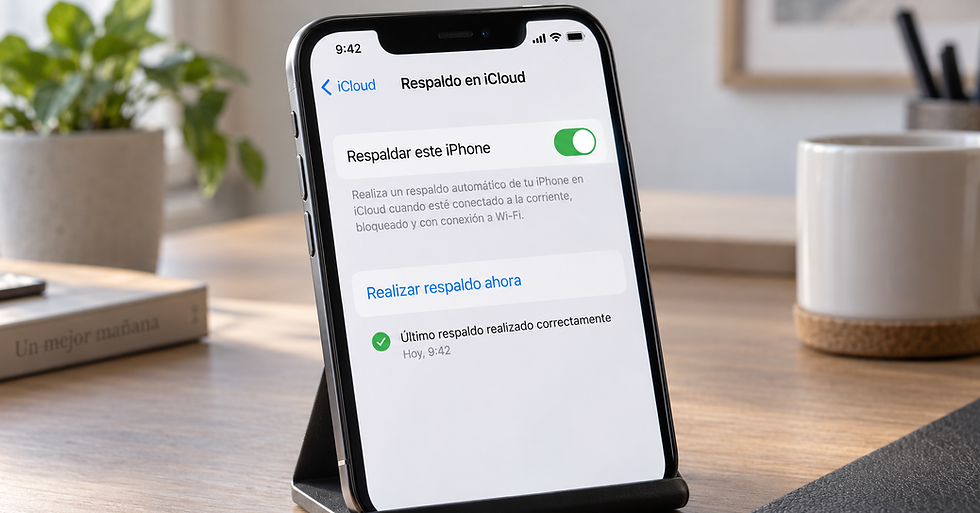
Create an iCloud or computer backup before a major update.
For iCloud, open Settings > [your name] > iCloud > iCloud Backup > Back Up Now. Stay connected to Wi-Fi until it finishes, then confirm the date and time of the latest backup.
If you do not have enough iCloud storage, back up the iPhone to a Mac using Finder or to a PC using the Apple Devices app. Verify that the backup completed before continuing.
3. Free up storage
Open Settings > General > iPhone Storage. Review Apple's recommendations and the apps using the most space.
There is no single free-space number that applies to every iPhone because download and temporary installation requirements vary. If iOS asks to temporarily remove apps, it can reinstall them after the update while preserving their data.
Start with downloaded video, large files, offline media, and apps you no longer use. Do not delete important photos or documents until you know they are backed up or correctly synced.
4. Update essential apps
Open the App Store, tap your profile photo, and install available updates. Current apps are less likely to have compatibility problems already fixed by their developers.
For critical apps, check whether the provider confirms iOS 27 support. This is especially important for banking, authentication, enterprise systems, and professional accessories.
5. Check the battery and charging
Keep the iPhone connected to a reliable power source during installation. If the battery drains rapidly, the phone shuts down with charge remaining, or it becomes unusually hot, consider having it checked before a lengthy update.
A worn battery does not necessarily prevent installation, but it raises the risk of interruption if the iPhone loses power.
6. Confirm passwords and recovery access
Make sure you know the iPhone passcode and Apple Account password. Confirm that you can access the trusted phone number or recovery method used for two-factor authentication.
If you use authentication apps or work accounts, make sure recovery options are available. Do not remove enterprise profiles or sign out of accounts unless you know how to restore them.
7. Choose a stable connection and a good time
Connect the iPhone to reliable Wi-Fi and power. Allow time for downloading, preparing, restarting, and post-update optimization. Downloads can take longer during the first days of a major release because of server demand.
How to install iOS 27
Open Settings.
Tap General.
Tap Software Update.
Select Download and Install.
Follow the prompts, keeping the iPhone connected to power and Wi-Fi.
You can also schedule installation overnight through Automatic Updates.
What to expect after updating
For the first several hours, the iPhone may complete background work such as indexing content, analyzing photos, and updating apps. Temporary warmth or higher battery use does not automatically indicate a fault.
After the update:
Test calls, cellular data, Wi-Fi, and Bluetooth
Open your essential apps
Check that photos, contacts, and notes are present
Reconnect important accessories
Observe battery life over one or two normal charge cycles
If the iPhone remains hot, restarts, loses markedly more battery, or an essential function still fails after the initial period, restart it and check for another software update.

Conclusion
iOS 27 is available for iPhone 11 and later, as well as iPhone SE models from the second generation onward. Before installing, confirm compatibility, create a backup, free storage, update your apps, and connect the iPhone to stable power.
If your iPhone already has shutdowns, a worn battery, persistent storage problems, or another fault, an inspection before updating can reduce complications. iProX can assess the device and help you choose the safest way to prepare it.


Comments