
Wet MacBook: Immediate Steps and Mistakes to Avoid


A spill on a MacBook requires quick action, but not improvisation. Even if the computer stays on, liquid may reach the connectors, keyboard, battery, or logic board. Electricity and the residue in water, coffee, soda, or alcoholic drinks can cause short circuits and corrosion.
Your priorities are to remove power, avoid spreading the liquid, and arrange an inspection. Turning the MacBook on “just to see if it still works” can turn a cleanable problem into more extensive damage
What to do immediately
Disconnect power and accessories
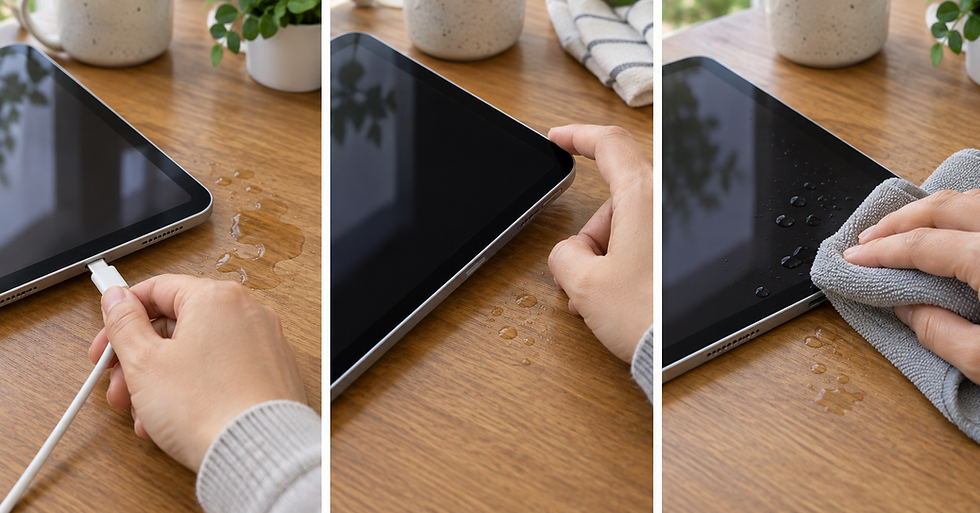
Unplug the charger from the outlet and the MacBook if you can do so without touching pooled liquid or a wet cable. Disconnect external drives, hubs, flash storage, displays, and other accessories.
If the adapter, cable, or outlet is wet, disconnect power from a safe point first. Do not handle wet electrical connections.
Shut down the MacBook
If it responds, shut it down from the Apple menu. If you cannot use macOS, press and hold the power or Touch ID button until the computer turns off.
Once it is off, do not press keys to check for a response. On models that start when the lid opens or a key is pressed, avoid unnecessary interaction.
Remove visible liquid
Blot liquid from the surface with a clean, dry, lint-free cloth. Do not scrub or push moisture toward the keyboard, speakers, or ports.
If the spill was substantial, move the MacBook only as much as necessary. Repeatedly tilting, shaking, or flipping it can distribute liquid into additional areas.
Arrange an inspection promptly
The exterior may dry while moisture remains under the keyboard or on the logic board. Drinks containing sugar, milk, salts, or alcohol can also leave conductive or corrosive residue.
An early inspection allows the battery to be disconnected and affected areas to be examined and cleaned before corrosion progresses. No at-home waiting period can guarantee that the inside is safe.
Mistakes that can make liquid damage worse
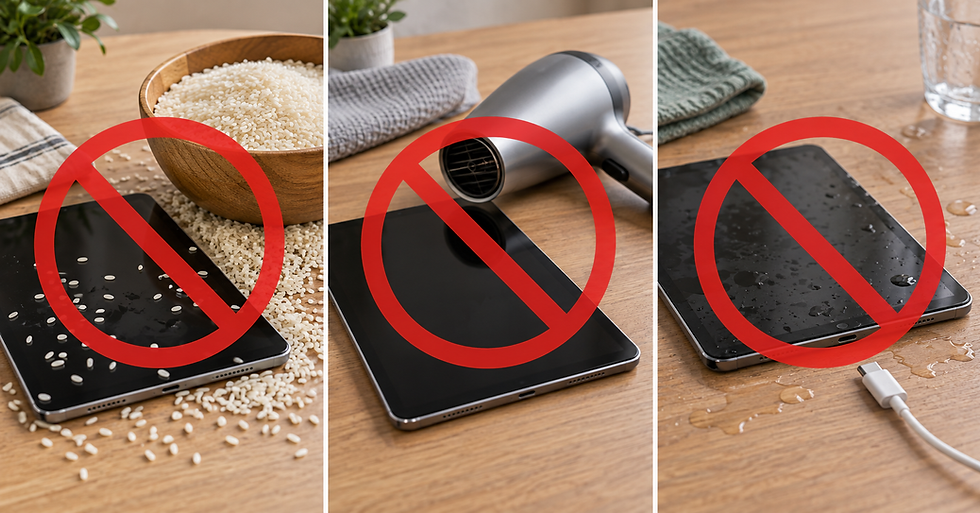
Do not turn it back on
A MacBook working immediately after a spill is not proof that it escaped damage. Electrical current can speed up electrochemical reactions, with faults appearing hours or days later.
Do not sign in, finish a task, or try to back up files. If the data is important, mention that before service so the diagnostic can prioritize recovery.
Do not connect the charger
Applying power to a potentially wet system adds electrical current. Do not test different USB-C or MagSafe ports, adapters, or docks.
Do not use a hair dryer, oven, or direct sunlight
Intense heat can deform parts, weaken adhesives, damage the battery, and move moisture. Avoid compressed air as well because it can force liquid and residue deeper into the computer.
Do not put it in rice
Rice does not remove beverage residue or reveal the condition of the logic board. Dust and particles may enter ports and openings. A MacBook that appears dry can still have internal corrosion.
Do not insert swabs or tools into ports
Objects can bend contacts or leave fibers. Cleaning only the visible areas is not a substitute for an internal inspection when liquid entered through the keyboard, vents, or connectors
Does the type of liquid matter?
Yes. Clean water can still cause a short circuit, but coffee, soda, juice, beer, and drinks containing milk or sugar usually leave more residue. Salt water is particularly corrosive.
When requesting an inspection, state what was spilled, the approximate amount, where it landed, when it happened, and whether the MacBook was on or connected to power. These details help guide the inspection.
Warning signs after a spill
Even if the computer starts again, watch for:
Keys that fail, repeat, or feel sticky.
Erratic trackpad behavior or a click that stops working.
USB-C, MagSafe, or audio ports that become unreliable.
Display stains, flickering, or no image.
Distorted speakers or microphone problems.
Intermittent charging, rapid battery drain, or unusual heat.
Restarts, shutdowns, high fan speed, or an unusual smell.
These problems can appear immediately or develop as corrosion advances.
What a technical diagnostic examines
An inspection may cover the liquid entry path, contact indicators, connectors, battery, keyboard, trackpad, ports, and logic board. The goal is to identify what needs cleaning, repair, or replacement before power is applied again.
Current Mac notebooks include liquid contact indicators. Apple states that damage caused by liquid exposure is not covered by its one-year limited warranty; the terms of any applicable AppleCare plan should be checked separately.

Can the files be recovered?
It depends on the model, storage condition, and extent of the damage. Storage is integrated into the logic board on many modern MacBook models, so recovery may depend on preserving or repairing that board.
Do not repeatedly start the computer to make a backup. Tell the technician at the beginning if the data is the priority and whether a Time Machine, iCloud Drive, or other backup exists.
Conclusion
If a MacBook gets wet, disconnect power, shut it down, blot only the surface liquid, and do not turn it on or charge it again. Avoid rice, heat, compressed air, and objects inserted into the ports.
A prompt inspection improves the chance of limiting corrosion and making an informed decision about cleaning, repair, and data recovery. iProX can evaluate liquid damage and explain the available options before work begins.


Comments