
iPad Not Charging: Common Causes and When It Needs Repair


When an iPad will not charge, the battery is not always the cause. The cable, power adapter, outlet, temperature, charging port, or a temporary software freeze can all produce a similar symptom.
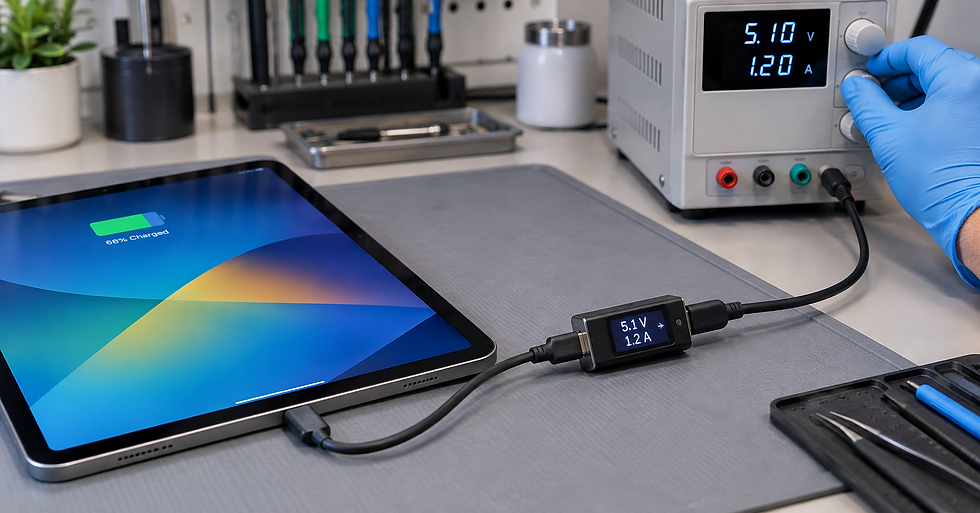
Before assuming the repair will be expensive, you can perform a few safe checks. It is equally important to recognize when repeated charger tests could make existing damage worse.
How to tell whether the iPad is charging
When connected to power, the iPad should display a lightning bolt on the battery icon or a large battery symbol on the Lock Screen. If the battery is completely depleted, the display may take several minutes to respond.
Leave it connected to a reliable power source for at least 20 to 30 minutes before trying to turn it on. A low-battery symbol means the iPad detects some power, although the cable, adapter, or battery may still have a problem.
Common reasons an iPad will not charge
A damaged cable or adapter
Cables develop bends, internal breaks, and connector damage. A cable can look normal and still fail intermittently. Power adapters can also stop delivering the correct output.
Test another compatible cable and adapter that are known to work. Change one part at a time so you can identify the cause. Check the wall outlet with another device as well.
Not enough power
A computer USB port, an unpowered hub, or an underpowered adapter may charge an iPad very slowly or fail to keep up while the device is in use. Apple recommends a USB power adapter connected to a working outlet, a USB 2 or later port on an awake computer, a powered hub, or another compatible accessory.
If the percentage rises only while the screen is off, the power source may be supplying less energy than the iPad is consuming.
Debris or damage in the charging port
Lint, dust, or compacted debris can prevent the plug from seating fully. If the cable feels loose, works only at an angle, or disconnects with slight movement, the port needs attention.
Do not insert metal tools, needles, or cleaning liquids, and never force the connector. Improper cleaning can bend contacts or cause a short circuit. If debris is not superficial, professional cleaning is safer.
The iPad is too hot or too cold
An iPad may temporarily limit or stop charging outside its acceptable temperature range. Let it return to a normal temperature in a ventilated place, away from direct sunlight, without applying external heat or intense cold.
Disconnect it if it becomes unusually hot whenever power is connected. Heat concentrated around the port, adapter, or one area of the iPad may indicate a fault.
A temporary software freeze
Sometimes the iPad receives power but iPadOS does not respond correctly. A force restart can clear this condition without erasing your data.

When the iPad may need repair
Have the device inspected if it:
Does not recognize cables or adapters that work with other devices.
Charges only while the plug is held or tilted.
Connects and disconnects with minimal movement.
Becomes unusually hot when connected.
Shows corrosion, moisture, an unusual smell, or dark marks in the port.
Drops its charge immediately, shuts down with charge remaining, or has a swollen battery.
Was dropped or exposed to liquid before the charging problem began.
If the display or enclosure is lifting, stop charging and using the iPad. A swollen battery requires specialized handling.
.
What a diagnostic can reveal
A technical inspection can distinguish between issues that feel identical to the user: a worn battery, damaged USB-C or Lightning port, incompatible accessory, compacted debris, charging-circuit failure, or abnormal power draw on the logic board.
Diagnosis avoids replacing parts through trial and error. It also helps determine whether repair remains worthwhile based on the iPad model, age, condition, and intended use.
Conclusion
If your iPad will not charge, start with the outlet, cable, adapter, temperature, and a force restart. If the connector is loose, charging is intermittent, the device heats up, or no reliable accessory works, stop testing and arrange a diagnostic.
iProX can inspect the charging system, battery, and related components to identify the cause before recommending a repair.


Comments